

ChatGPT Images 2.6 Explained: GIFs, SVG and Faster Creative Workflows
on 10 days ago
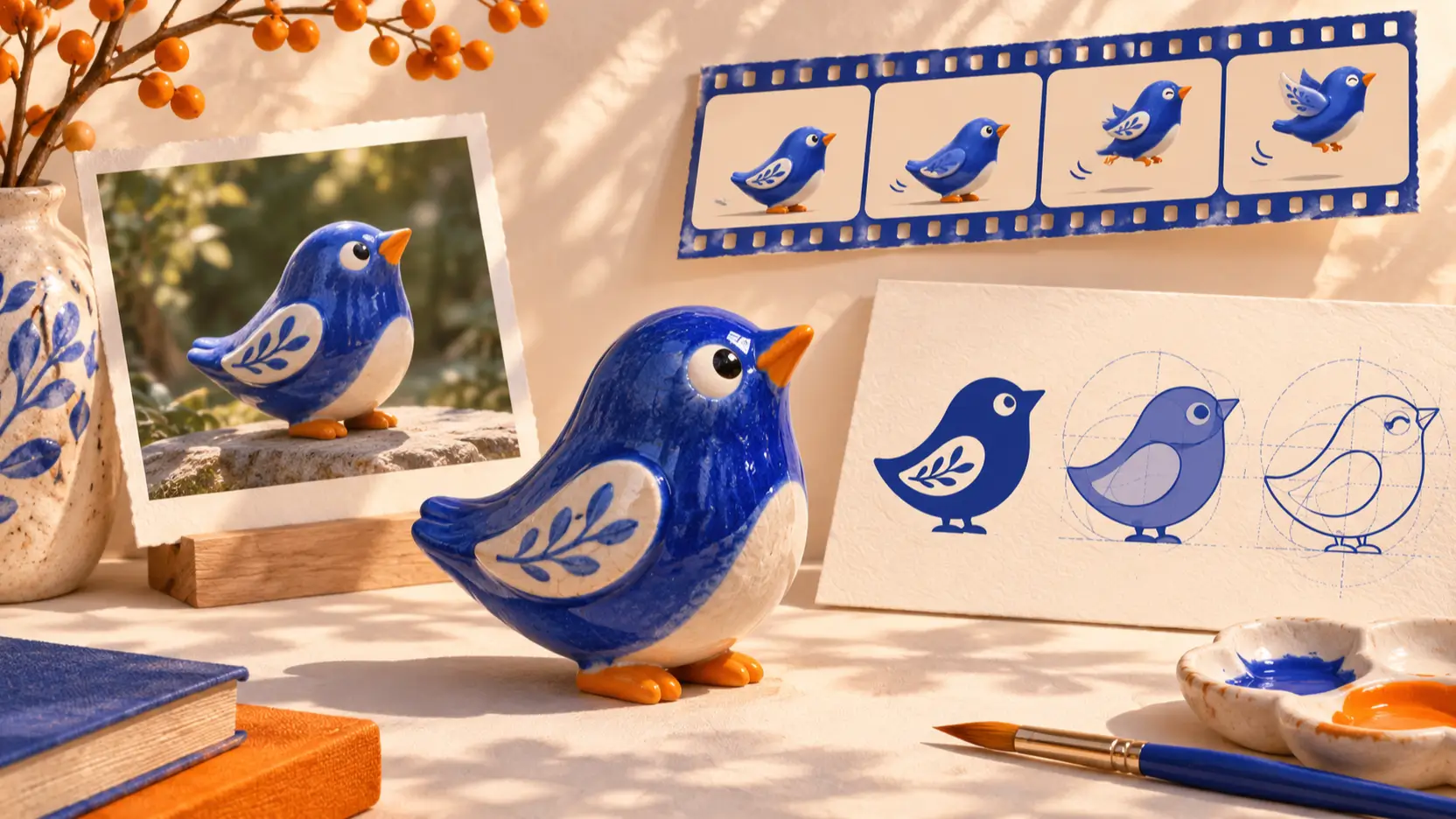
ChatGPT Images 2.6 is OpenAI’s image generation and editing update for creating still images, animated GIFs and vector designs. Released on November 4, 2026, it also brings new editing controls. For designers and marketers, the useful question is which output fits the job: a campaign image, a looping mascot or an editable graphic. OpenAI’s release announcement confirms the launch and capabilities.
This guide explains the changes, puts the speed headline in context and suggests a practical evaluation workflow. It is based on official documentation checked on November 10, 2026, rather than a hands-on benchmark. The illustrations are editorial concepts, not product screenshots or model test results.
What does ChatGPT Images 2.6 include?
The name refers to an image experience across ChatGPT and Codex, alongside an API model family. OpenAI offers two API variants: Flare, aimed at fast iteration, and Sunburst, aimed at detailed work and consistency across edits. Its announcement also introduces image markup in the API, SVG export and a complexity control. Each affects a different handoff, from refining the image to delivering the file. OpenAI’s announcement describes that positioning.
A useful starting point is the file you need to hand over. A social post might need one approved still. A reaction sticker needs motion that reads immediately. An icon needs a shape that remains legible at a small size. Decide that before spending time on variations.
Model capability and platform controls are separate questions. Check the format selector and available editing options in the application you use. A model page describing GIF or SVG support does not establish that every connected service exposes those options.
How should you read the 50% faster claim?
OpenAI says Images 2.6 generates images 50% faster than before, and that Flare can produce a low-quality image in as little as six seconds. These are vendor claims, not Shotyard measurements or a completion-time guarantee. The launch post supplies both figures.
For a working team, measure time to an acceptable asset. A quick draft that needs several repairs can take longer overall than a slower result that meets the brief. Include generation, review, revisions and export in your comparison.
Use the same brief, reference material, dimensions and quality target when comparing outputs. Record each attempt, including rejected results. Note whether the delay came from waiting for generation or correcting a misplaced object. Your team can then compare the work behind each accepted image, rather than plan around a headline percentage.
Plan a GIF around one clear movement
An effective first animation brief describes a subject, one action and a return to the starting pose. Try a mascot raising its wing and lowering it again, with a fixed camera and plain background. Adding several actions at once makes it harder to identify what caused a poor result.
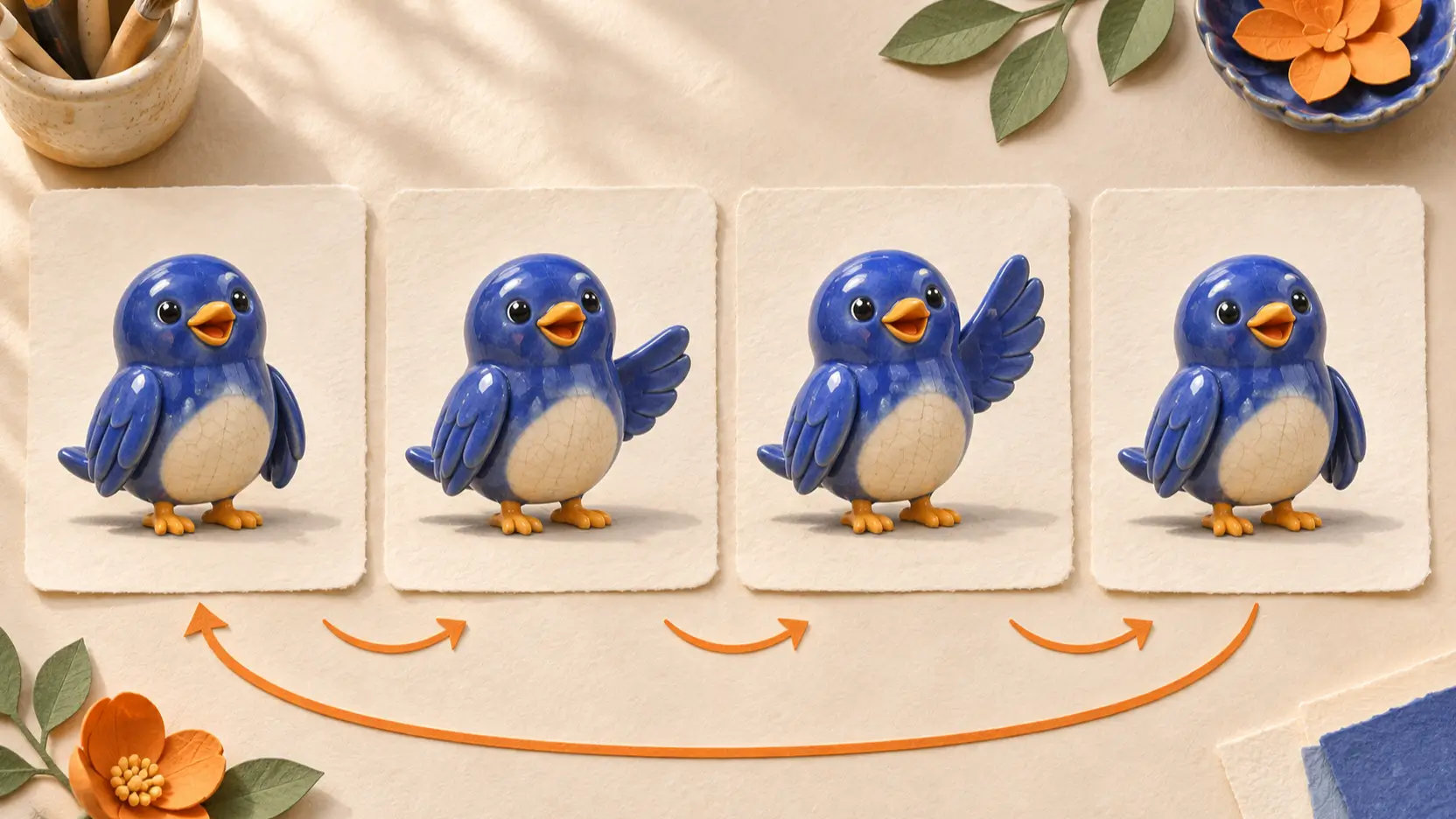
For example: “Animate this bird giving one slow wave. Keep its face, colors and position consistent. Return to the starting pose so the movement loops.” This is a suggested brief, not a tested prompt or a promise of a particular result.
Inspect the exported animation through several repetitions. Look for a jump at the loop boundary, a changing face or an object that appears in only one frame. Review it at the size where viewers will see it; motion that seems subtle on a large preview may disappear in a small placement.
The API documentation supports GIF output from generation and edit requests, with frame-count and frame-duration controls. A sprite sheet is a still arrangement of frames; it is not itself a playable GIF. Check the delivered file, not just its preview. OpenAI’s GIF documentation explains the output workflow.
Treat SVG as an editable handoff
SVG is useful when the deliverable needs editable vector shapes, such as an icon or a simple illustration. OpenAI documents static SVG output through the generation endpoint, while noting that SVG output is not supported by the image edit endpoint. It also excludes embedded raster images, scripts and external resources from the returned SVG. The SVG documentation describes those boundaries.
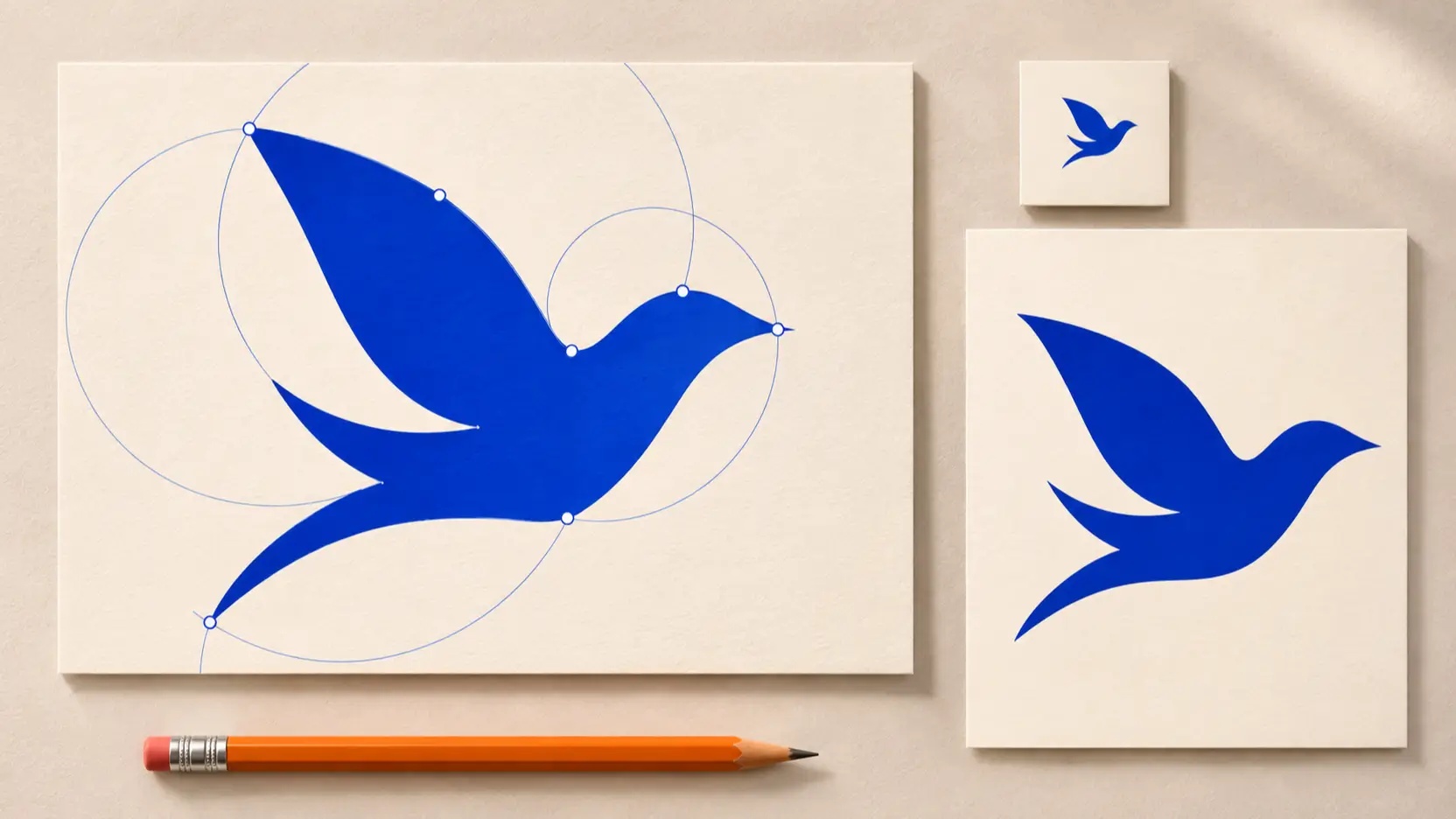
Start with a brief that suits the format: a recognizable silhouette, limited colors and a clear intended size. If the task is a navigation icon, specify the visual meaning and the background it will sit on. A detailed illustration and a small interface icon need different review criteria.
Open the export in your design application and inspect the geometry. Check uneven curves, stray shapes and narrow gaps. Then preview it at the actual placement size. A technically valid file can still need design cleanup before it belongs in a product.
Keep an approved reference alongside the editable file. When someone later changes its color or proportions, that reference helps them see what should remain consistent.
Use editing controls to narrow each revision
Quality and complexity address different choices. OpenAI describes quality as rendering quality, while complexity controls planning before rendering. Its guide warns that higher complexity can increase latency and introduce unwanted changes. Markup lets an annotation layer indicate where an edit should happen. OpenAI’s image guide documents these controls.
Write a revision around one change and the details to preserve. For a product visual, that might be: “Change only the background to pale blue. Preserve the bottle shape, label, cap and camera angle.” Compare the result with the previous approved version before requesting another change.
If an edit loses an important detail, return to the last acceptable version and narrow the instruction. Avoid stacking new corrections onto an image whose identity has already drifted. Keep a short revision record so the final reviewer can follow which decisions were intentional.
Run a small evaluation before changing your workflow
Choose one real assignment with a clear acceptance standard. For a campaign mascot, that standard might include consistent colors, a readable expression and a clean loop. For a product still, it might require accurate packaging and space for copy.
Use this sequence:
- Write the output format, intended placement and details that must remain unchanged.
- Generate a draft and inspect it against that brief.
- Request one focused revision, then compare both versions.
- Export the file and open it in the destination application.
- Record accepted results, rejected attempts and total time spent.
The Shotyard GPT Image 2.6 overview provides a starting point for exploring the model family. The GPT Image 2.5 page offers context for evaluating an existing still-image workflow. Check the controls and displayed cost before starting a generation; this guide does not assume identical options across services.
FAQ
Is ChatGPT Images 2.6 available on every plan?
OpenAI’s launch announcement lists availability across ChatGPT and Codex subscription tiers. That does not mean unlimited usage or identical controls in third-party products. Check the application and account you intend to use.
Does a sprite sheet count as an animated GIF?
No. A sprite sheet displays frames together in a still image. For an animated deliverable, open the exported file and confirm that it plays and loops correctly in its intended destination.
Can I edit an SVG through the image edit endpoint?
OpenAI’s documentation says that endpoint does not support SVG output. For changes to an existing vector file, use a vector editor or reassess the generation workflow described in the current documentation.
Conclusion
ChatGPT Images 2.6 is worth evaluating when your work needs short animation, vector output or repeated image revisions. Choose one representative assignment, define what counts as acceptable and inspect the final export. Keep the workflow that delivers an acceptable file with a manageable amount of revision.